
Table of contents
Development Process
Link to GitHub page.
Link to Manoa Connect deployed on Vercel.

Overview
To facilitate student connection, we introduce Manoa Connect, a social networking website that applies matching functionalities reminiscent of dating apps (Tinder, Hinge, etc.) but in the context of finding friends on the UH Manoa campus.
Motivation
- Despite 20,000 students on the UH Manoa campus, some students have a hard time making friends outside of their (ongoing/previous) classes or majors
- Difficulties being in a foreign environment (i.e. incoming freshmen, sophomores, exchange students)
- Difficulty breaking into established social groups (i.e. juniors/seniors)
- Some students lack time to commit to social events
- Certain people may be socially inexperience/have an introverted nature
- Pandemic times may have shifted cultural norms on offline socialization (i.e. people may prefer socializing online more now)
Goal
Our “Big Picture” vision is to develop a thriving social platform distinct to members of UH Manoa (specifically students). Our ideal outcomes for students include:
- Developing friendships with people from different majors at UH Manoa provide new perspectives
- New career/networking opportunities can arise from students in different fields of study
- Learning how to socialize with people who have unique backgrounds nurtures social skills applicable throughout life
User Guide
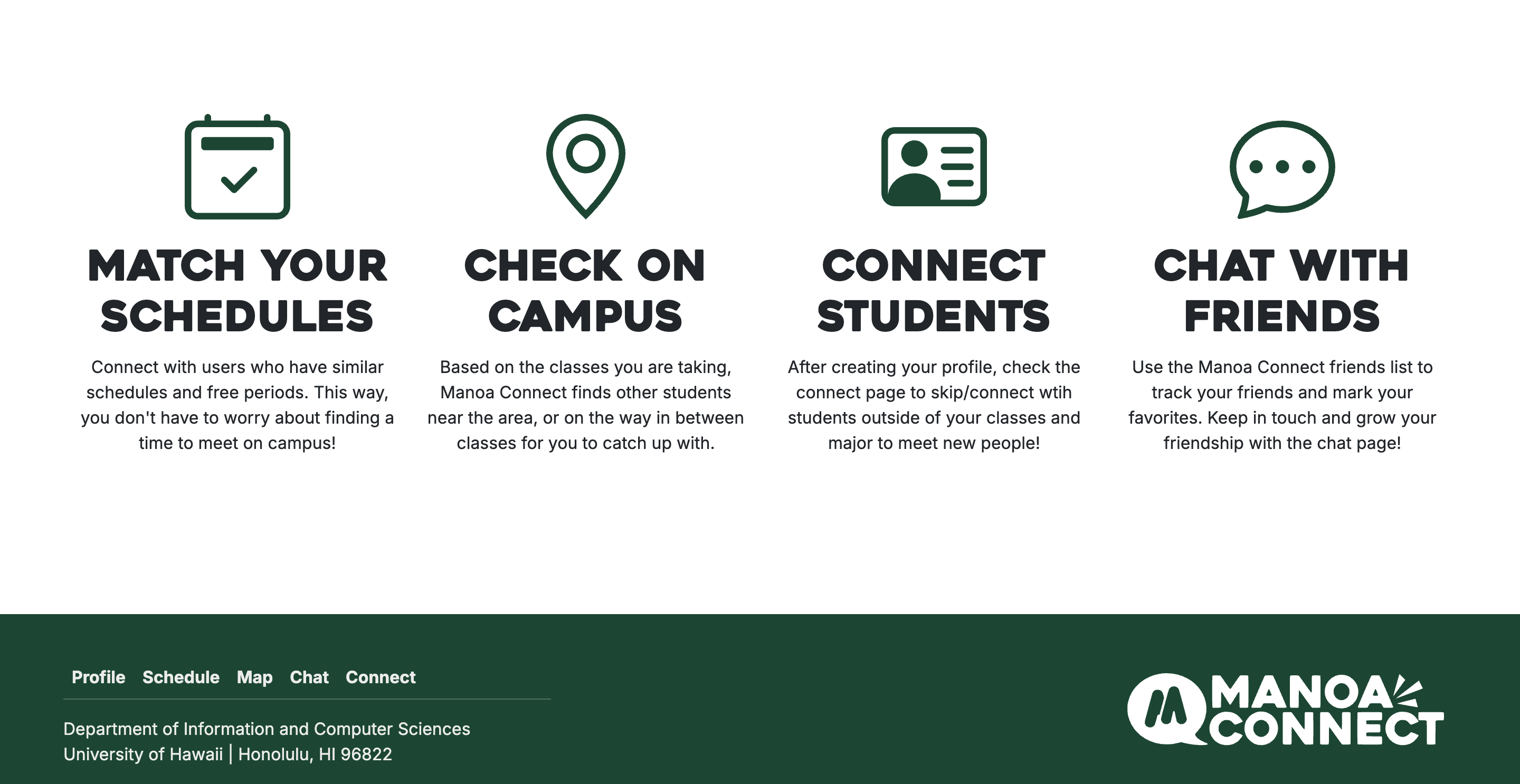
This portion covers how users can use a live version of our app deployed on Vercel, found here, and will assume the user has no prior knowledge of Manoa Connect. After clicking the link, users will be greeted by a landing page and additional information about how the core functionalities of Manoa Connect. If interested, the user can either click on ‘Get Started’ within the hero banner of the website, or click ‘Login’ on the top-right corner, which will open a dropdown that makes the ‘Sign Up’ link available.

Create an Account
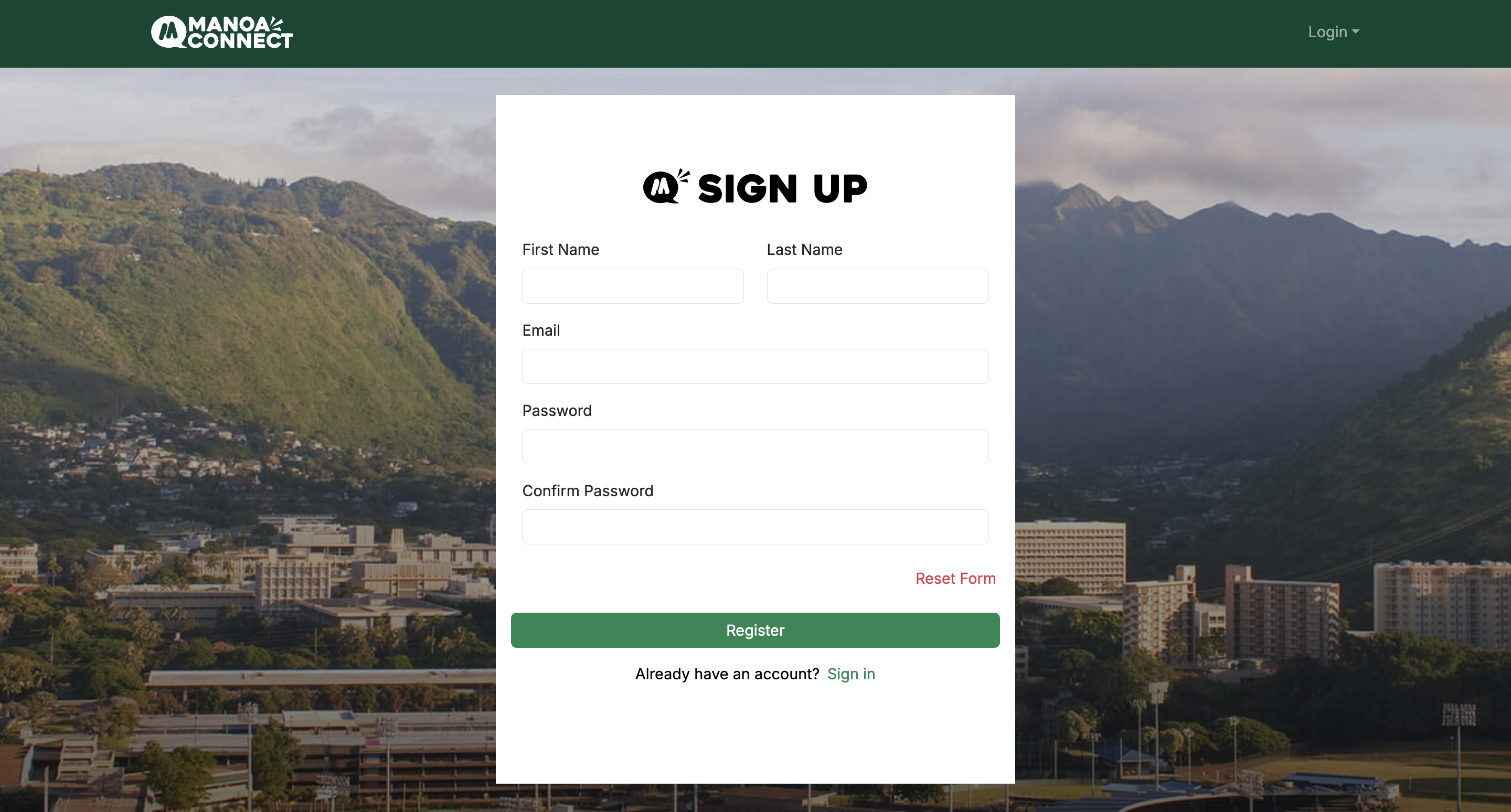
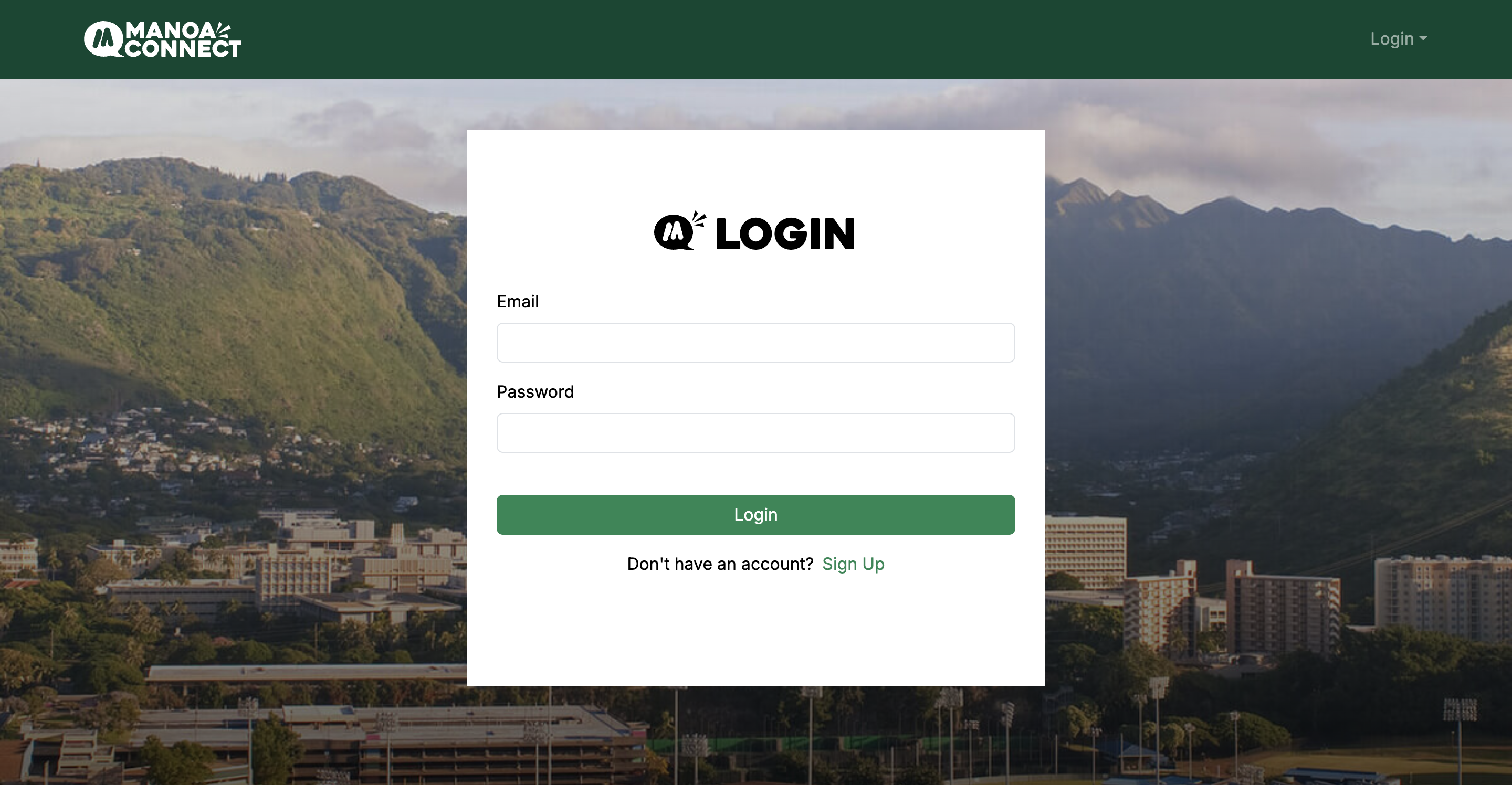
Users with an existing account can choose to log in with their credentials by navigating to the bottom of the sign-up page, or clicking in the top-right corner. However, new users should fill out their information on the following sign-up form. Once completed, this will direct the user to the next step of the account creation process: making a profile.
Make Your Profile
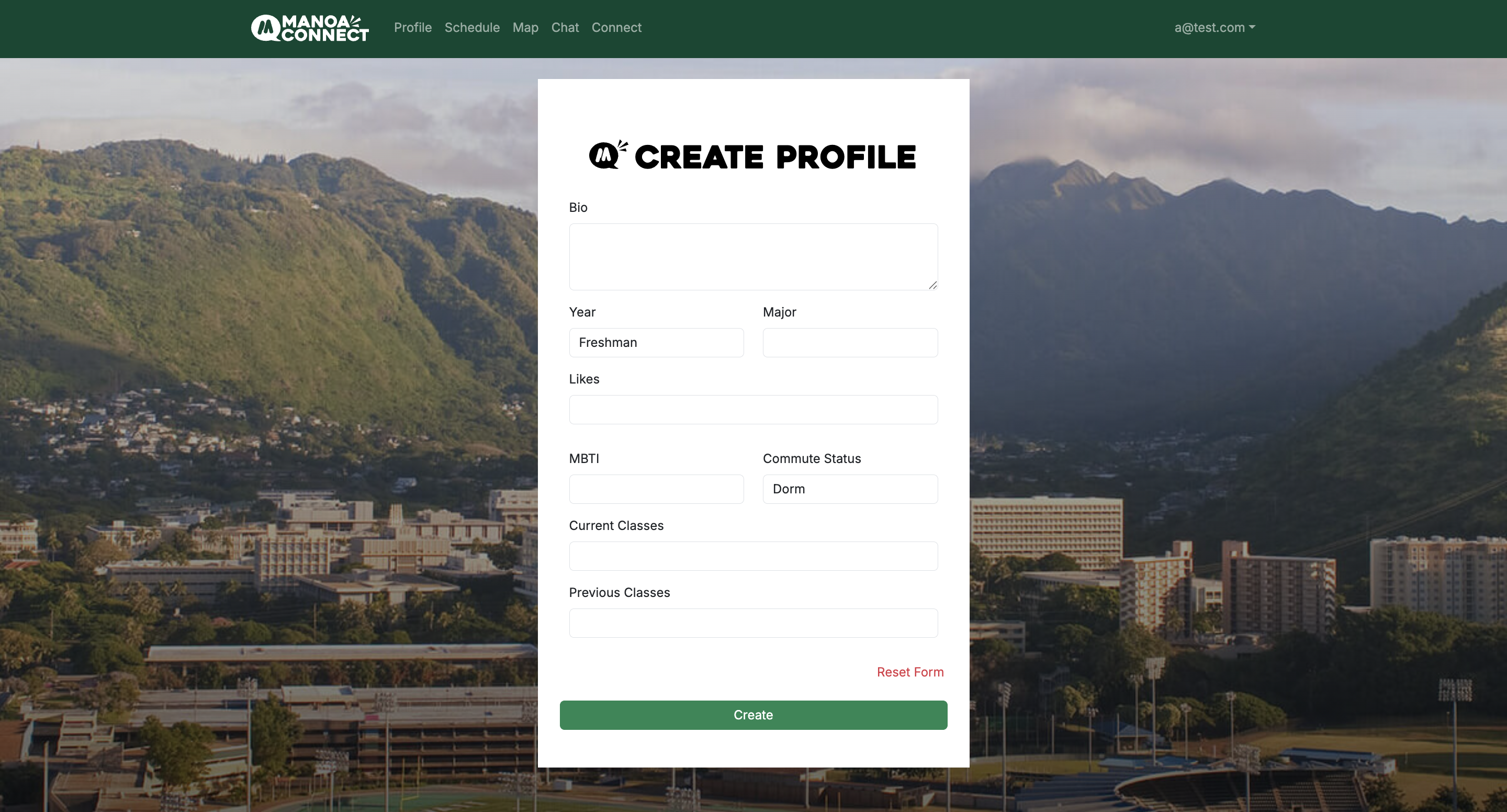
Upon signing up, users can now create their own profile by filling out the form. This profile will also be shown to other users looking to connect in a separate page. The form asks for surface-level information that will help find connections based on compatible schedules, interests, likes, and majors.
View Your Profile
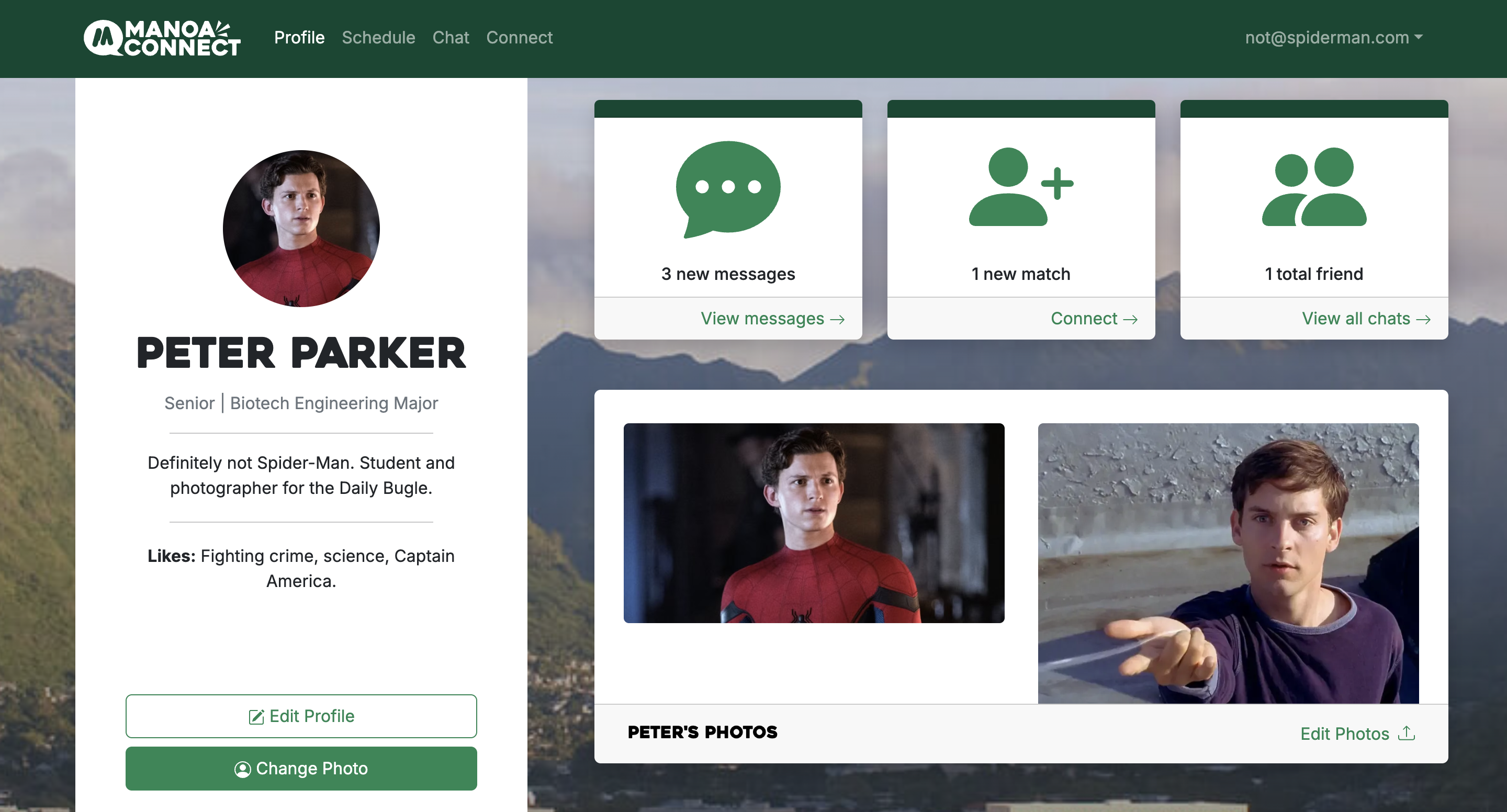
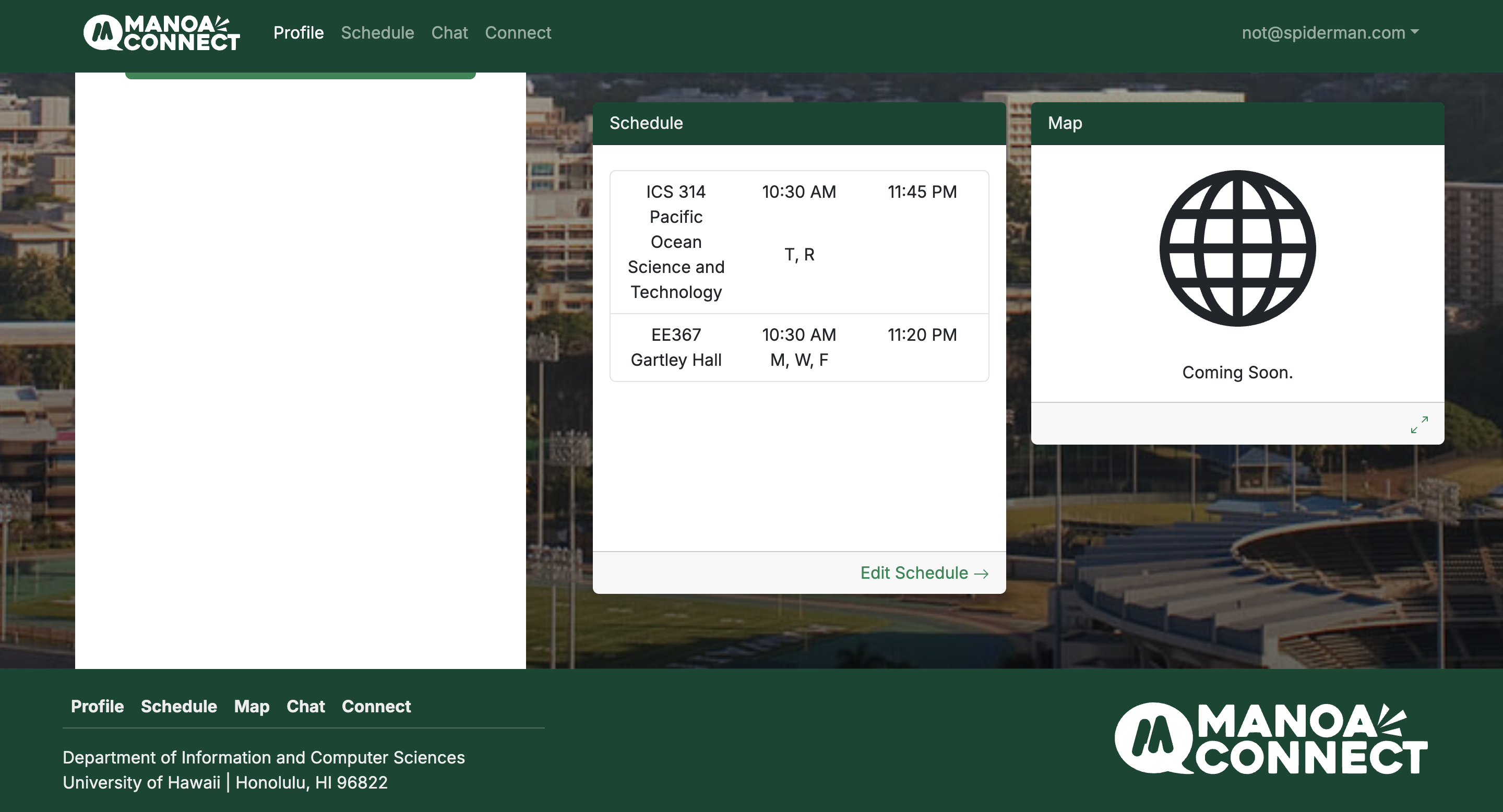
Users are then directed to their profile homepage (to be completed), which will include their current profile information and relevant notifications (i.e. possible connections, outgoing connections, total friends, and new messages). There are also quick links to other pages of the website if users wish to explore.
Edit Your Profile
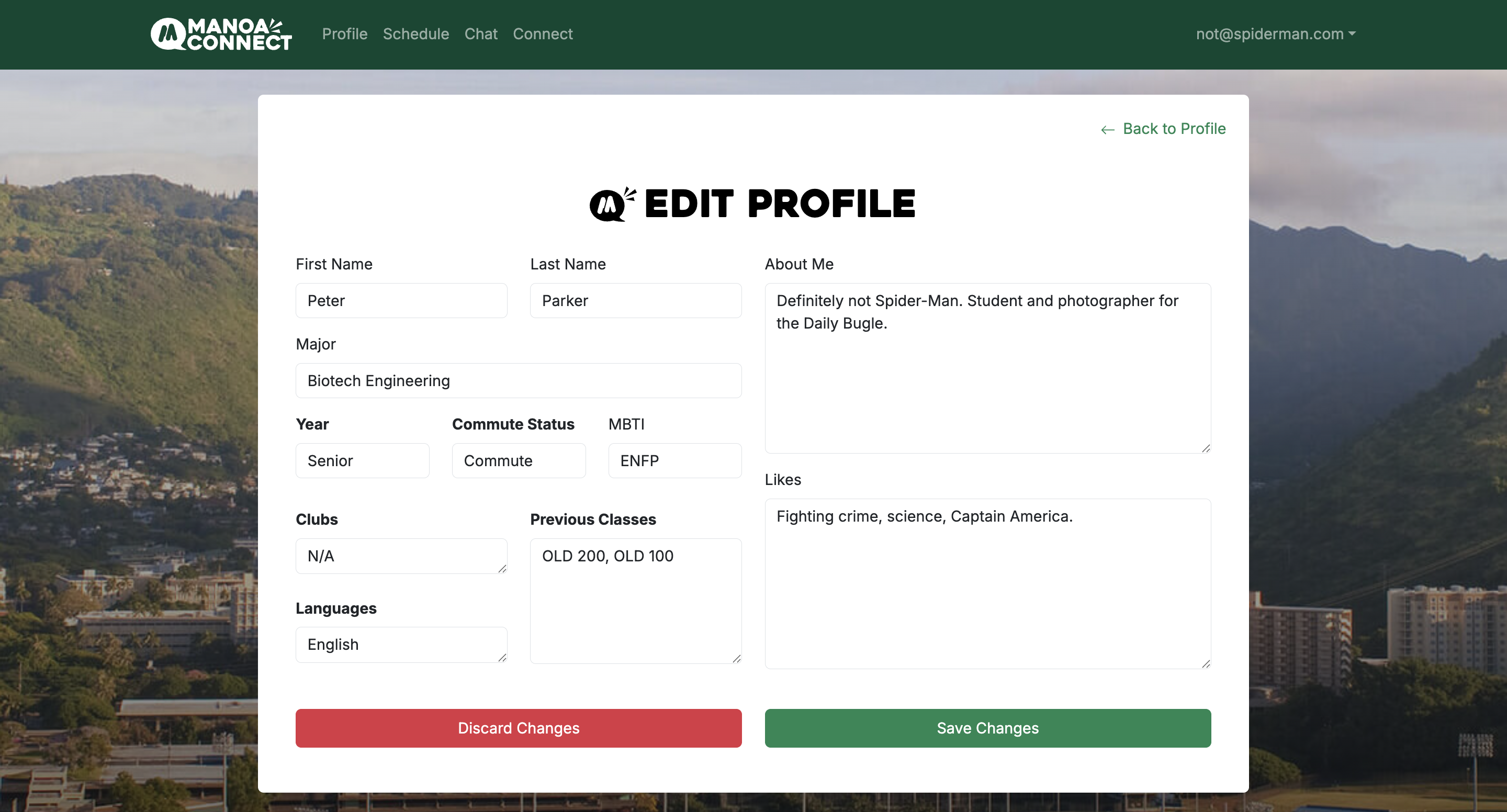
If users do not find their profile to their liking, they can choose to edit the information by clicking the “Edit Profile” button.
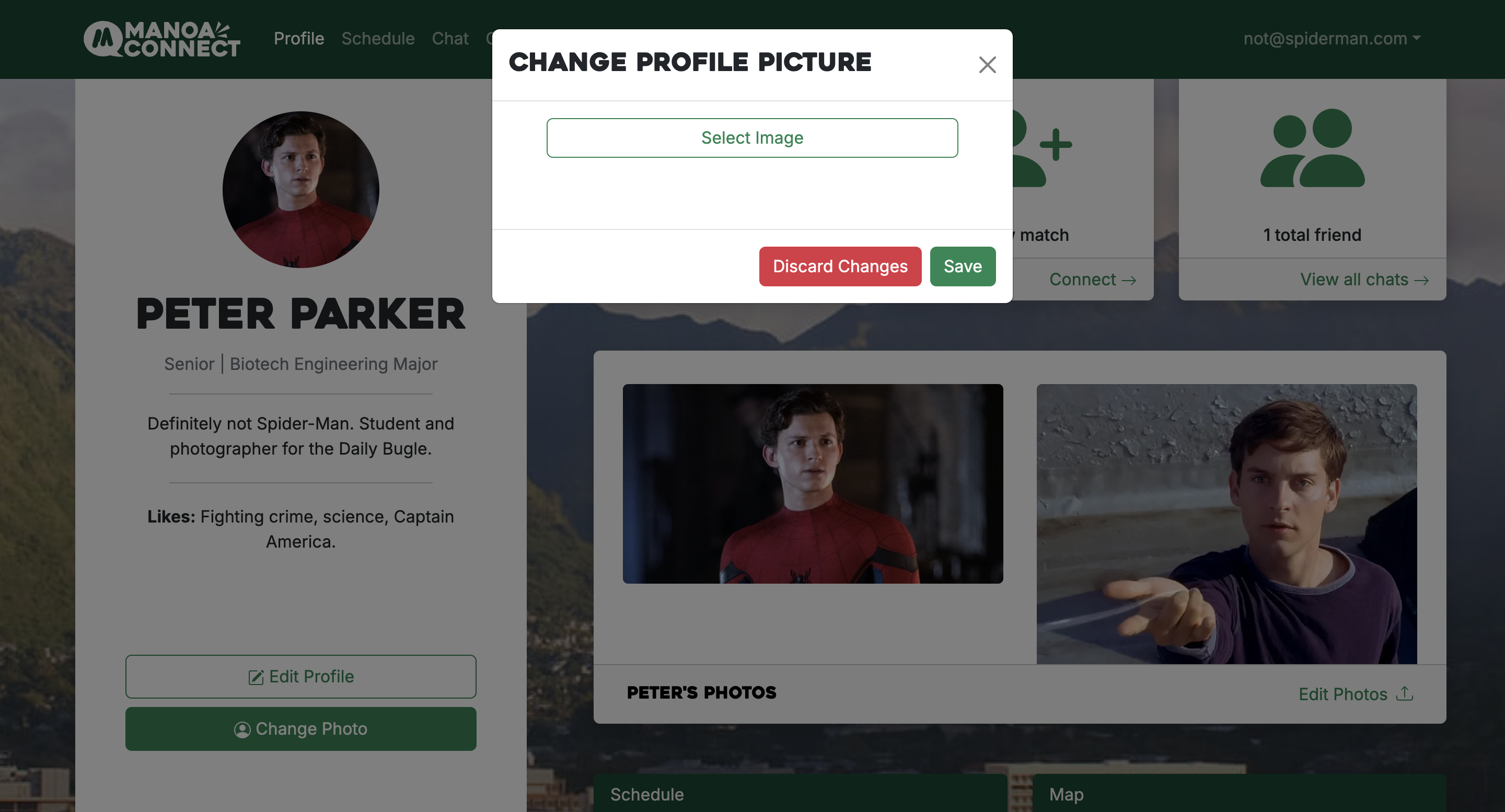
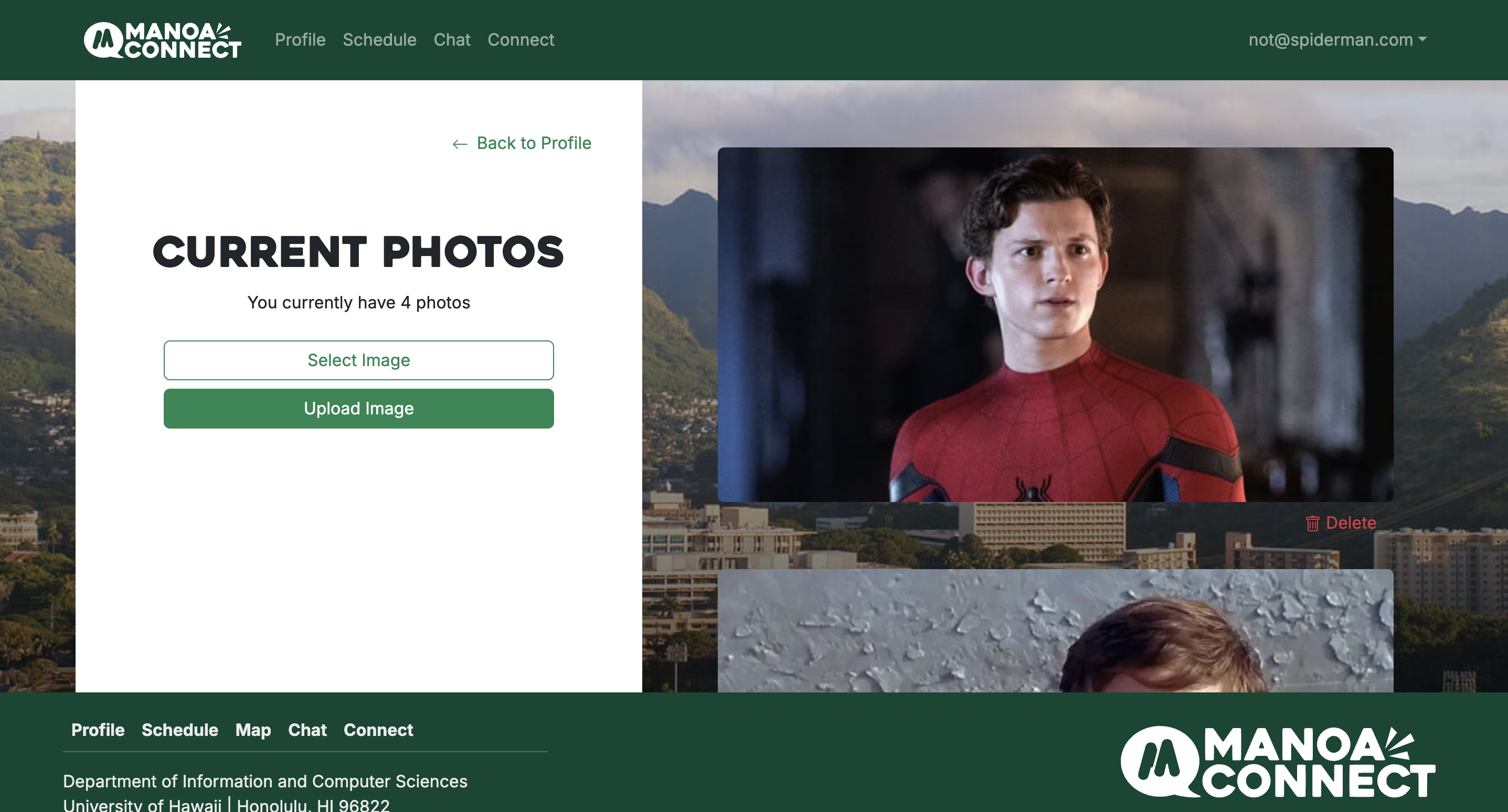
Additionally, users can change their profile pictures and add to their gallery, which will be shown to other users during the ‘Connect’ process. To do this, click ‘Change Photo’ on the left column or ‘Edit Photos’ within the photo section respectively.
Clicking ‘Change Photo’ simply brings up a pop-up where users are prompted to select a new photo, whereas clicking ‘Edit Photos’ brings users to an entirely new page where they can upload or delete images.
Add a Schedule
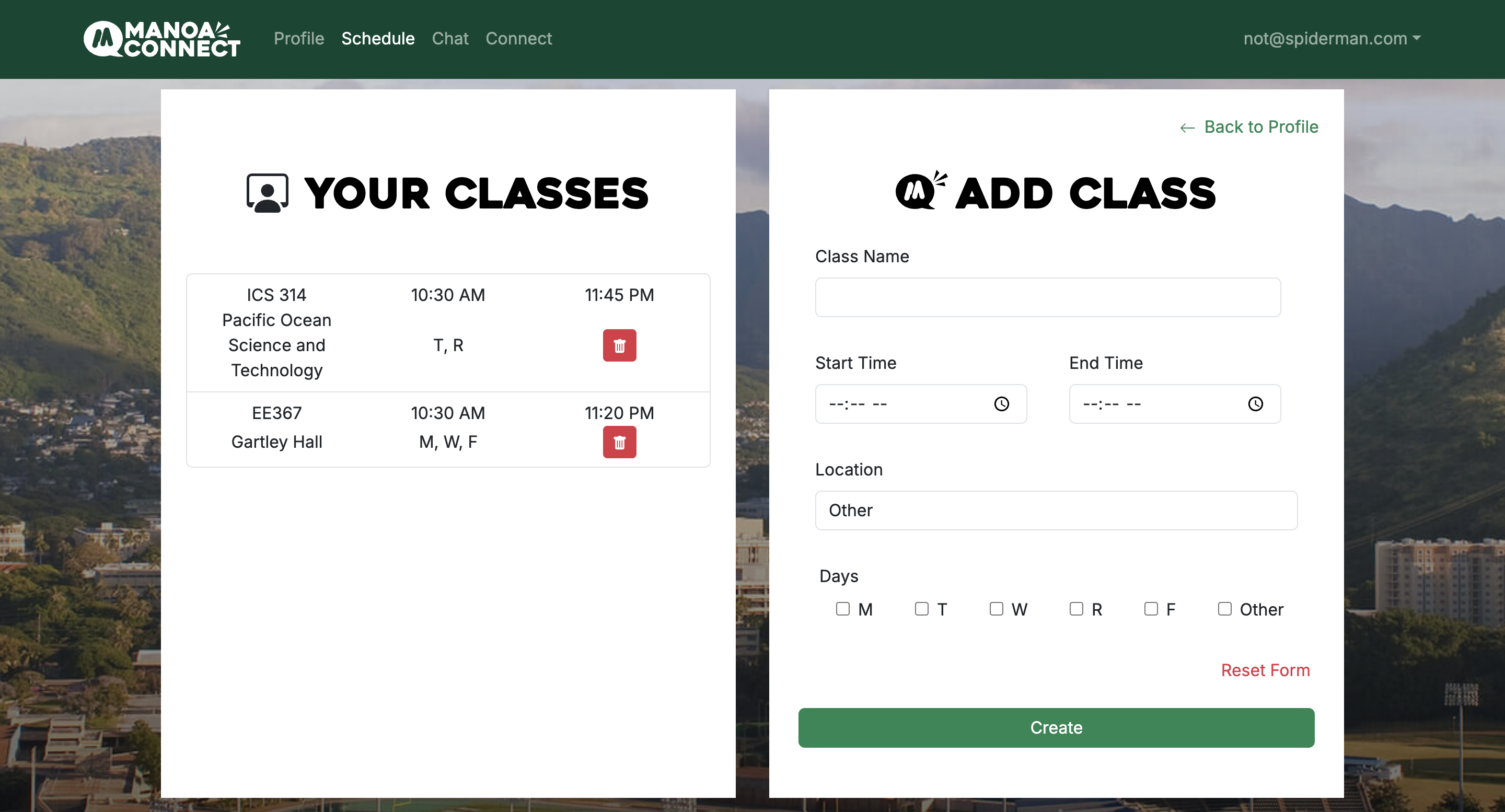
In addition to previous classes, Manoa Connect allows users to add their class schedule onto their profile! The specific times and schedules are not made publicly available. However, others can see if you are taking similar classes. To add classes to a schedule, navigate to the ‘Schedule’ page and fill out the form shown below.
Connect!
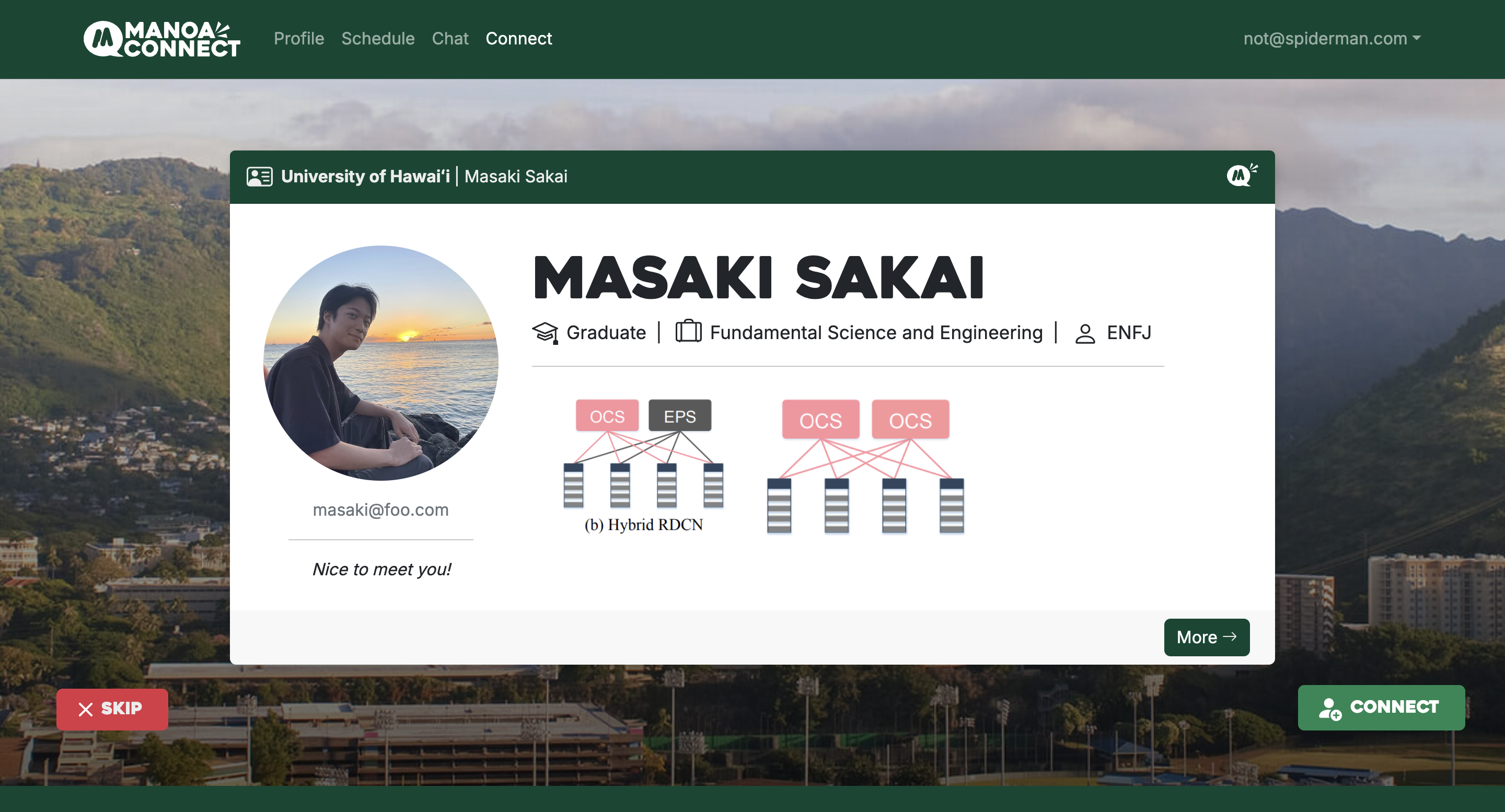
Once a user has fully set up their profile. Navigating to the Connect page shows a random Profile with various information, including:
- Major
- Current Year
- MBTI
- Description
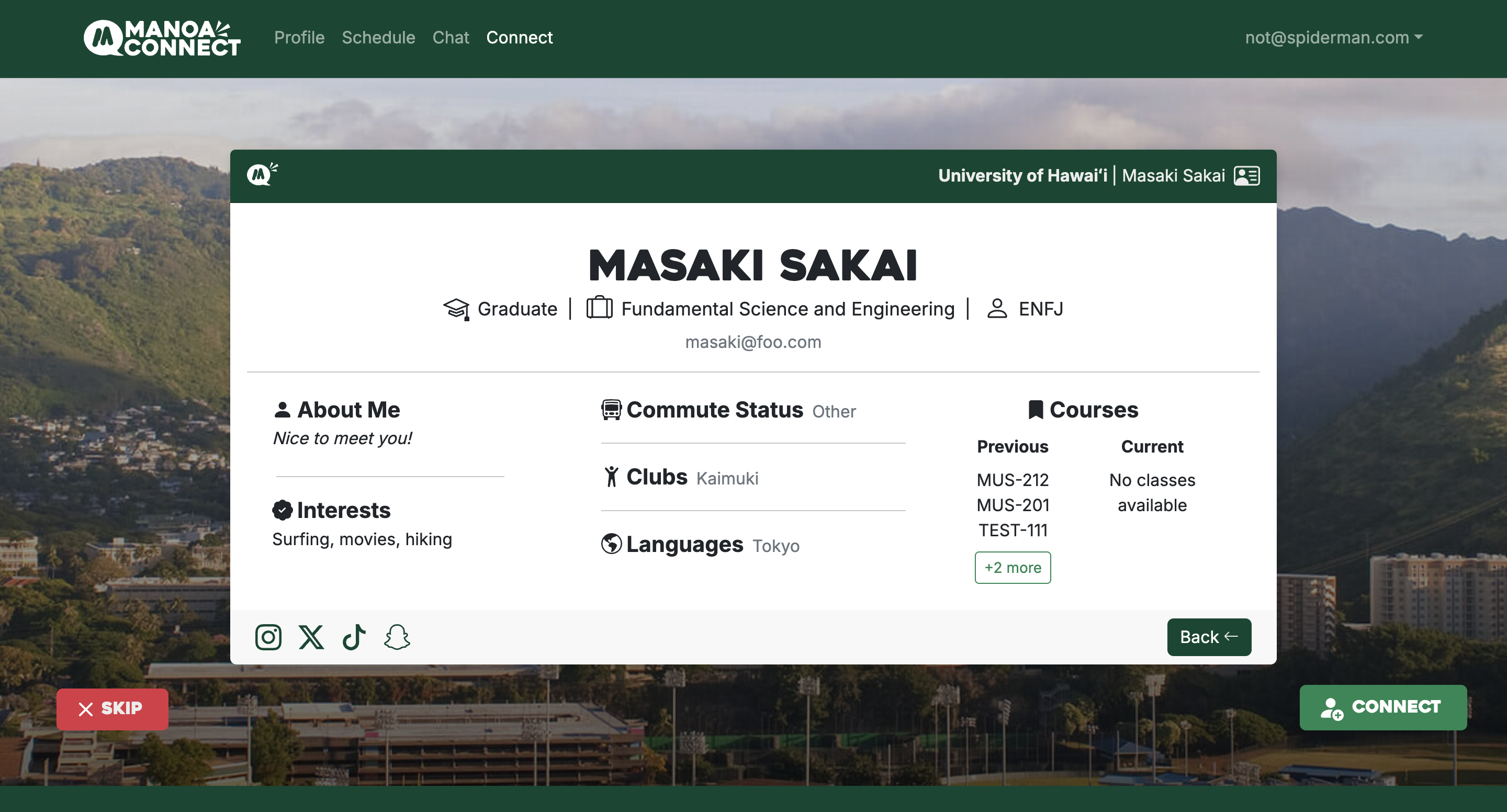
Clicking the ‘More’ button on the bottom-right of the card displays additional information about the Profile, such as:
- Interests
- Languages
- Clubs
- Commuter Status
- Previous and Current Classes
Users can choose to Skip a Profile or Connect with a Profile with buttons at the bottom corners.
Chat With Friends
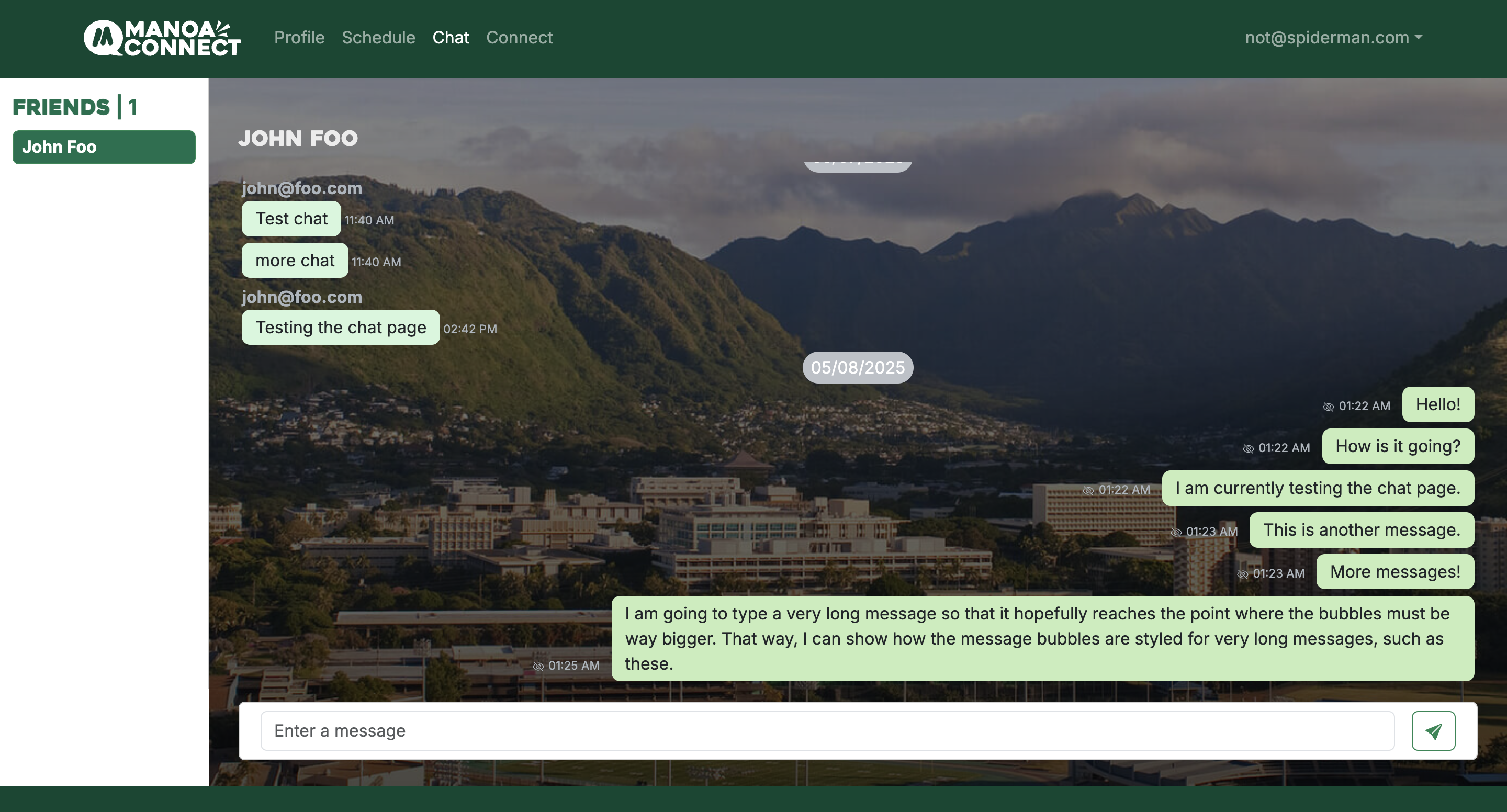
When 2 Profiles choose to connect with each other, they are allowed to use the Chat page, sending messages to each other!
Community Feedback
After testing our website with various audiences, here is some feedback we’ve received. The general idea is that, while the functionality and technical aspects of the website mostly work, it should also be further optimized for other devices, various scenarios, and consider the privacy of the people using the service.
- Good Technical Functions - A lot of testers had little to no issues with our main function, saying it was simple and straightforward to navigate through. They enjoyed being able to create your own profile and seeing real-time updates when matches are made, messages are sent, or pictures are uploaded.
- Lacks Responsiveness - One issue that was brought up but critical was how the application is not responsive for mobile devices. Unfortunately, mobile views were not as rigorously tested as the desktop version during development. This is something Manoa Connect can further improve upon.
- Personalization - Most users loved the customizable aspects—specifically filling out their profile, adding a schedule, and uploading their pictures—then seeing it laid out on their dashboard. They also liked being able to see others’ interests and information that they filled out. A piece of feedback that stood out was adding more customization capabilities (e.g., choosing what pictures are displayed, changing the color of the card, etc.).
- Privacy Concerns - Some testers raised ethical concerns. While a good product from a technical standpoint, the application currently lacks checks and balances that inform users how their information will be used and shared across the site.
- Verification - An interesting question posed by a few test users was, “How do you know if this person is really a student?” This is similar to the previous point but much more critical as the application is tailored for students and should be ensured to be only for students. A possible way to mitigate outside account creation is by setting up an institutional login, where only members with ‘hawaii.edu’ emails are allowed to sign up. Though this does not ensure users are specifically UH Manoa members, it at least narrows the user base to the University of Hawaii.
Developer Guide
Dependencies
Here is a list of all dependencies and tools used for this project:
- PostgreSQL (database)
- Prisma (ORM, object-relational mapping)
- NextJS (web development)
- Vercel (cloud service)
- Supabase (backend)
Please be sure to install them and be familiar with the framework.
Installation
The GitHub project of this website can be found and downloaded through here.
First navigate to the working directory. Using psql or with the command line interface, create a sample database and install npm.
npm install
createdb sample-manoa-connect
Copy and paste the sample.env file included in the repository and edit the following DATABASE_URL fields to connect to the created database.
DATABASE_URL="postgresql://<YOUR_POSTGRES_USERNAME>:<PASSWORD>@localhost:5432/<DATABASE_NAME>?schema=public"
Migrate the schema and populate the database using the following commands. If you would like to add/alter data, check the seed.ts (/prisma/seed.ts) and settings.development.json (/config/settings.development.json) files.
npx prisma migrate dev
npx prisma db seed
Local testing and deployment
To run the project locally, use
npm run dev
When attempting to deploy, you must create accounts for Vercel and Supabase and link the project. This can be done with
npm install vercel
vercel link
in addition to creating a Supabase bucket to store images. For more information, read here. This also requires the configuration of the following Supabase .env variables:
NEXT_PUBLIC_SUPABASE_URL=<your URL here>
NEXT_PUBLIC_SUPABASE_ANON_KEY=<your key here>
To create a build for test purposes and deployment, you must first alter the schema.prisma file (/prisma/schema.prisma) to be the following
datasource db {
  provider = "postgresql"
  // for local development
  // url      = env("DATABASE_URL")
  // for Vercel
  url       = env("POSTGRES_PRISMA_URL")
  directUrl = env("POSTGRES_URL_NON_POOLING")
}
Once completed you can run a build and attempt to deploy to Vercel with the following commands.
vercel build
vercel deploy
vercel --prod
Modifying the Project
All files in the repository can be edited and modified. Within the /src directory, there are 3 directories.
- /app - contains all pages and website structure
- /components - ReactJS components used for the pages in /app
- /lib - technical functions for database, validation, and authentication
Team and Roles
Manoa Connect is designed, implemented, and maintained by Codie Nakamura, Chaezen-Lee Pebria, Masaki Sakai, and Aaron Ramos.
Formal Team Contract: Our formal contract with agreements and criteria can be found here.
Chaezen Pebria - Page Specialist
Develops design for certain pages and page-specific features.
- “Matching/Connect” page
- Settings page
Masaki Sakai - Page Specialist
Develops design for certain pages and page-specific features.
- Friends page
- Chat page
Codie Nakamura - Project Manager, Page Specialist
Tracks team actions on GitHub; develops design for pages and specific features.
- GitHub
- User home page
- User profile
Aaron Ramos - Project Manager, Gopher
Coordinate team and project direction; help others with design/code/testing.
- Landing page
- Login/Signup page
- Graphics
Tools and Organization
Meeting Time: Sunday 6PM Discord + Tuesday in-class
Discord Text Channels
- Communication
- Links — important documents/links (i.e. proposal, sheets tracking, GitHub)
- Assets — Preliminary assets for everyone to review and look at
Final Presentation: Google Slides
Deployment
Manoa Connect uses PostgreSQL, NextJS, and is deployed on Vercel. To visit the website, click here.
Page List
This section provides a set of pages for Manoa Connect that will be implemented.
- Landing page
- Login/signup page
- User home page
- User profile page
- “Matching/Connect” page
- Friends list and chat page
- Settings page
M2 Additions
User Profile: Add/edit name, photo(s), major, likes/interests, list of (previous/current) classes, dorm/commuter/other status, clubs, MBTI
Matching/Connect: Random person pops up and users have the option of “match” or “skip” with two buttons
Friends: (Now combined with chat) Add freinds to a favorites/block list that can also be accessed; this page also includes the feature to delete friends
Chat: (Now combined with friends) List of chats with people matched and a selected chat page that allows for message functioning
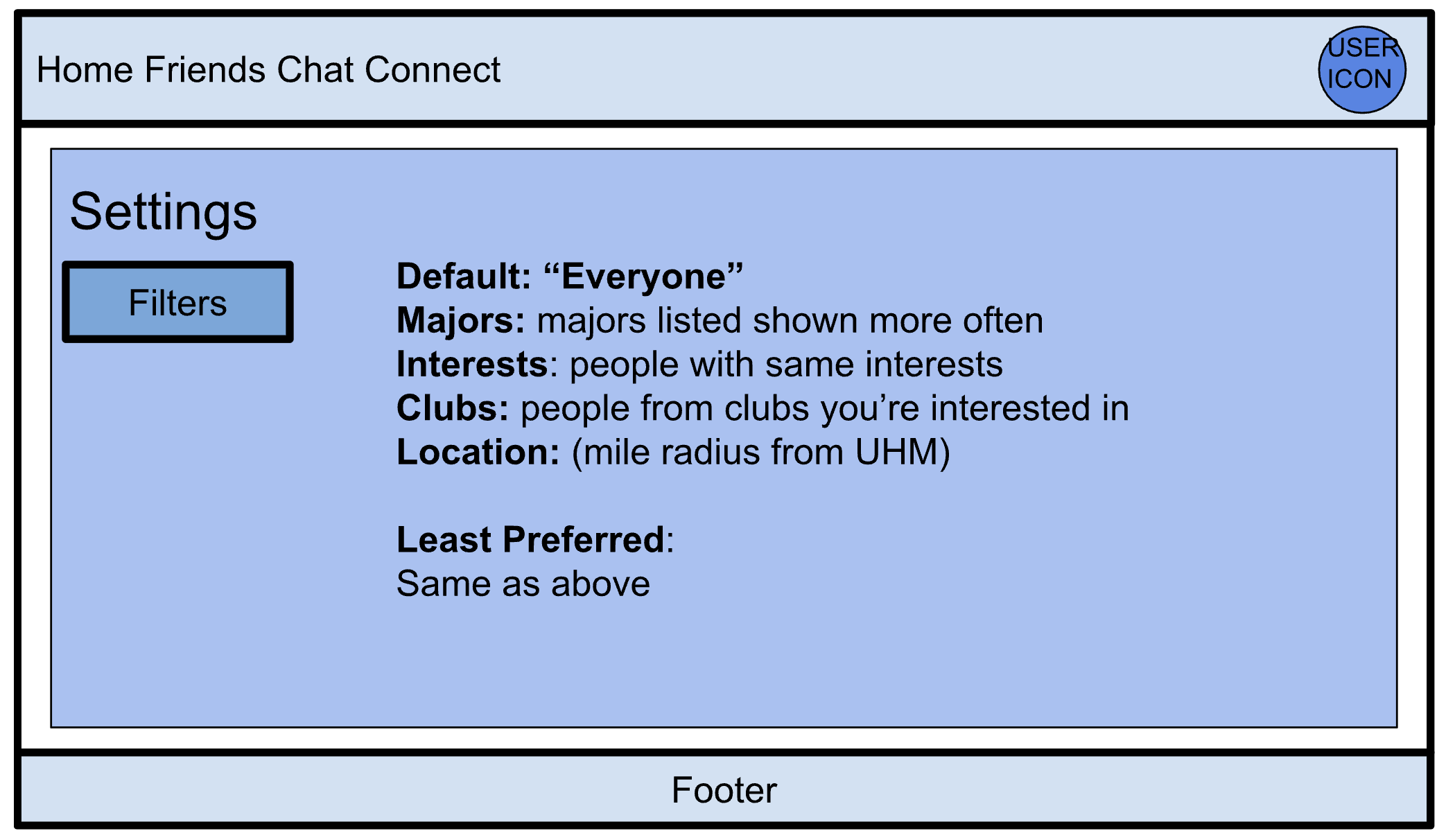
Settings: Settings to filter people shown (i.e. by major, interests, etc.)
Schedule Upload: Allows users to upload a schedule where they can add, edit, or remove classes (includes name of class, time, and building). These will be appended to their Profile so that users with similar classes/buildings/time blocks.
Mockups
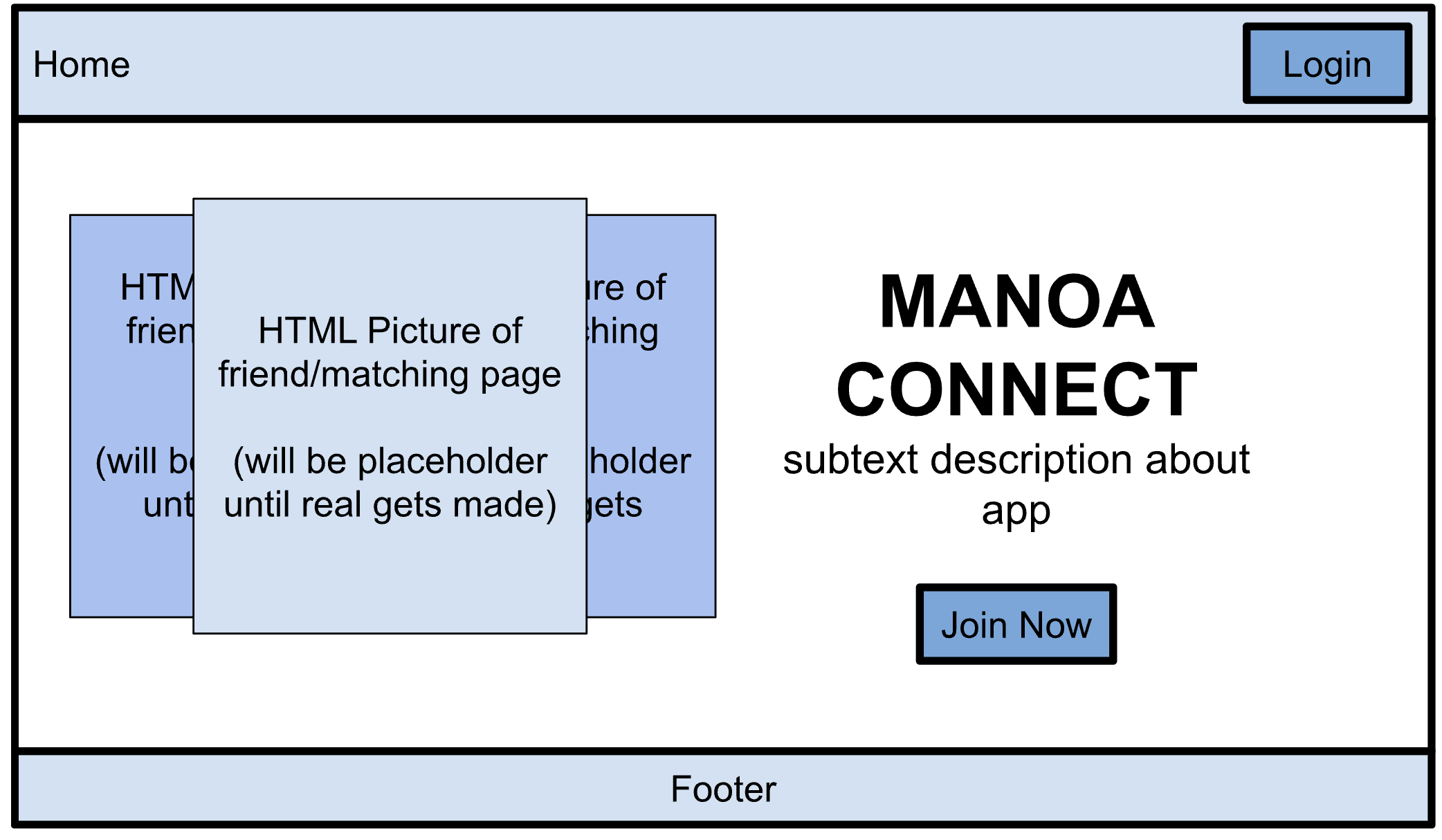
Landing Page
- Links to join now page
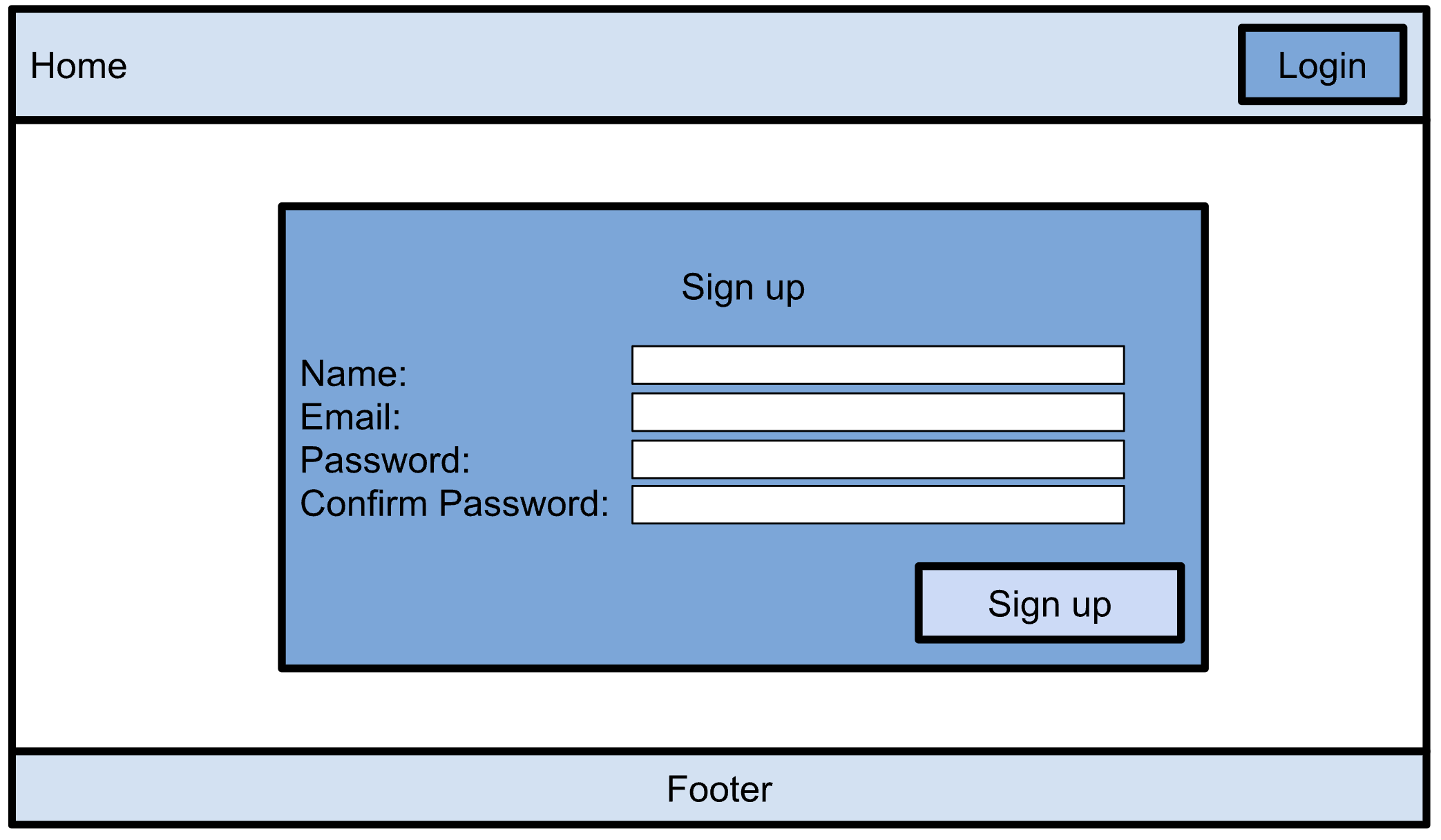
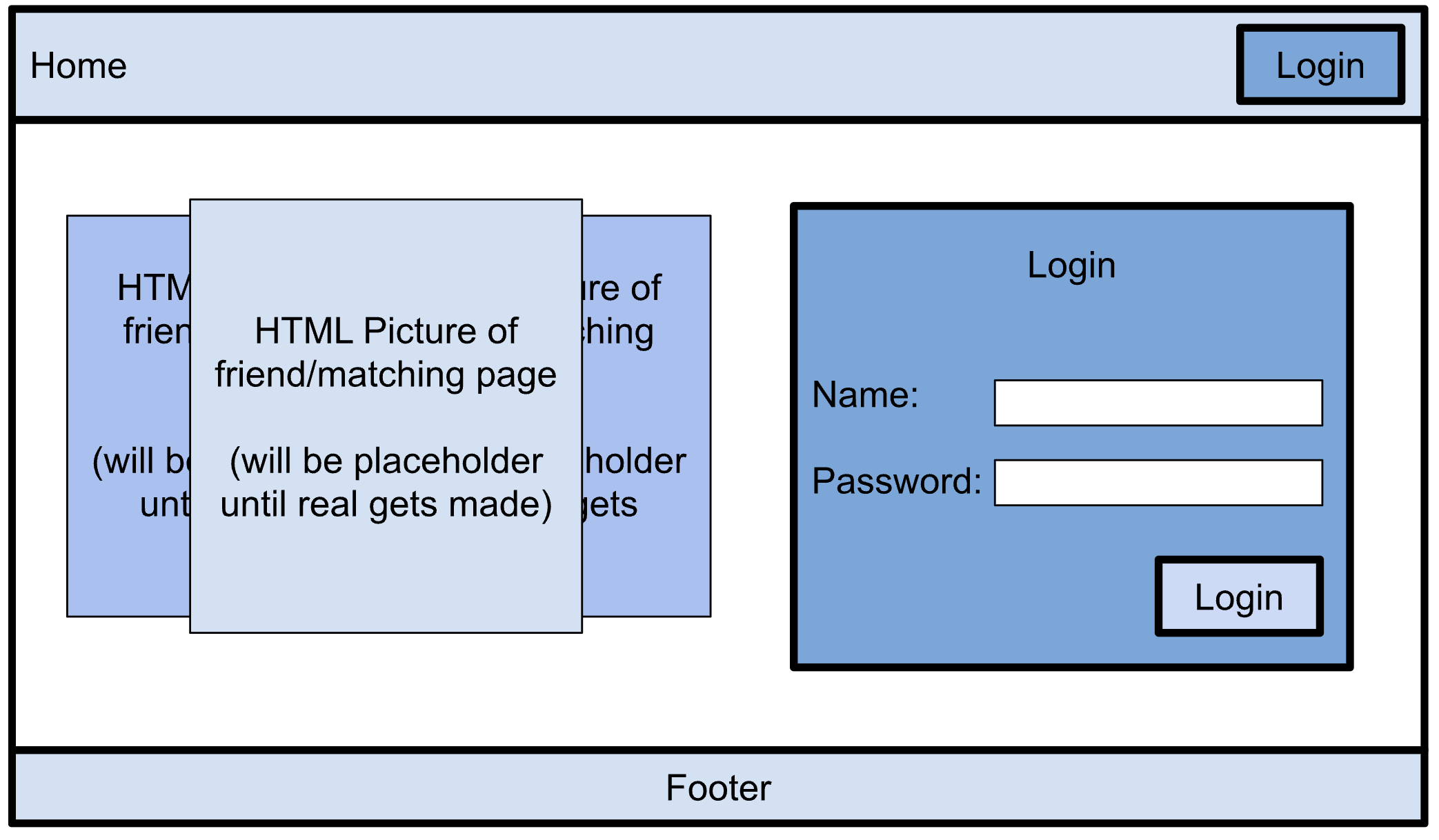
Login/Signup
User Home Page
- New messages box will be a button leading to the chat page
- There is second connect button (besides the one in the navbar) to go to the matching page
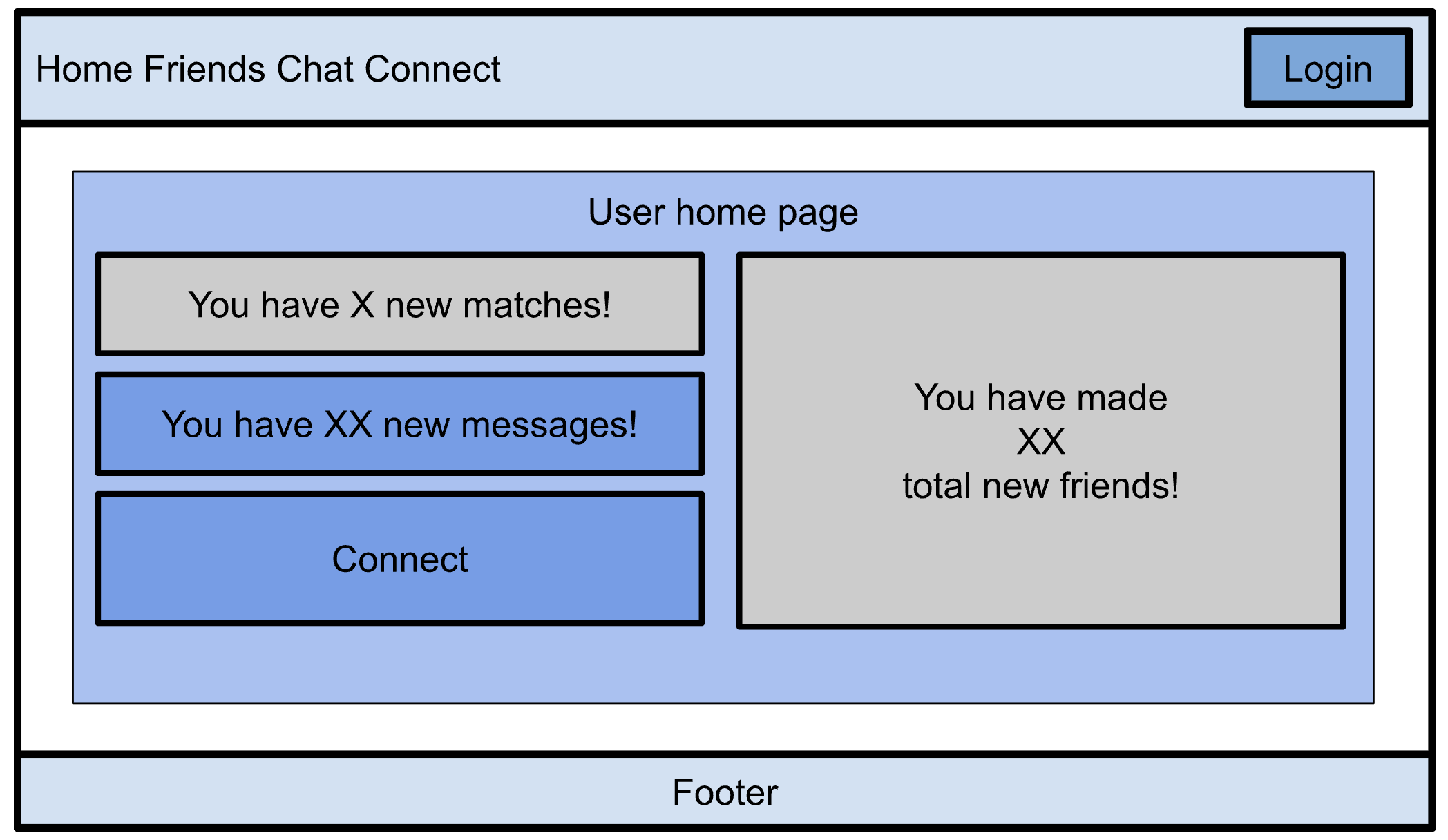
User Profile Page
- Dropdown: Major, Year, Commuter status, MBTI
- Text Boxes: List of current and previous classes, clubs, likes/interests
- Scroll down to upload/edit photos
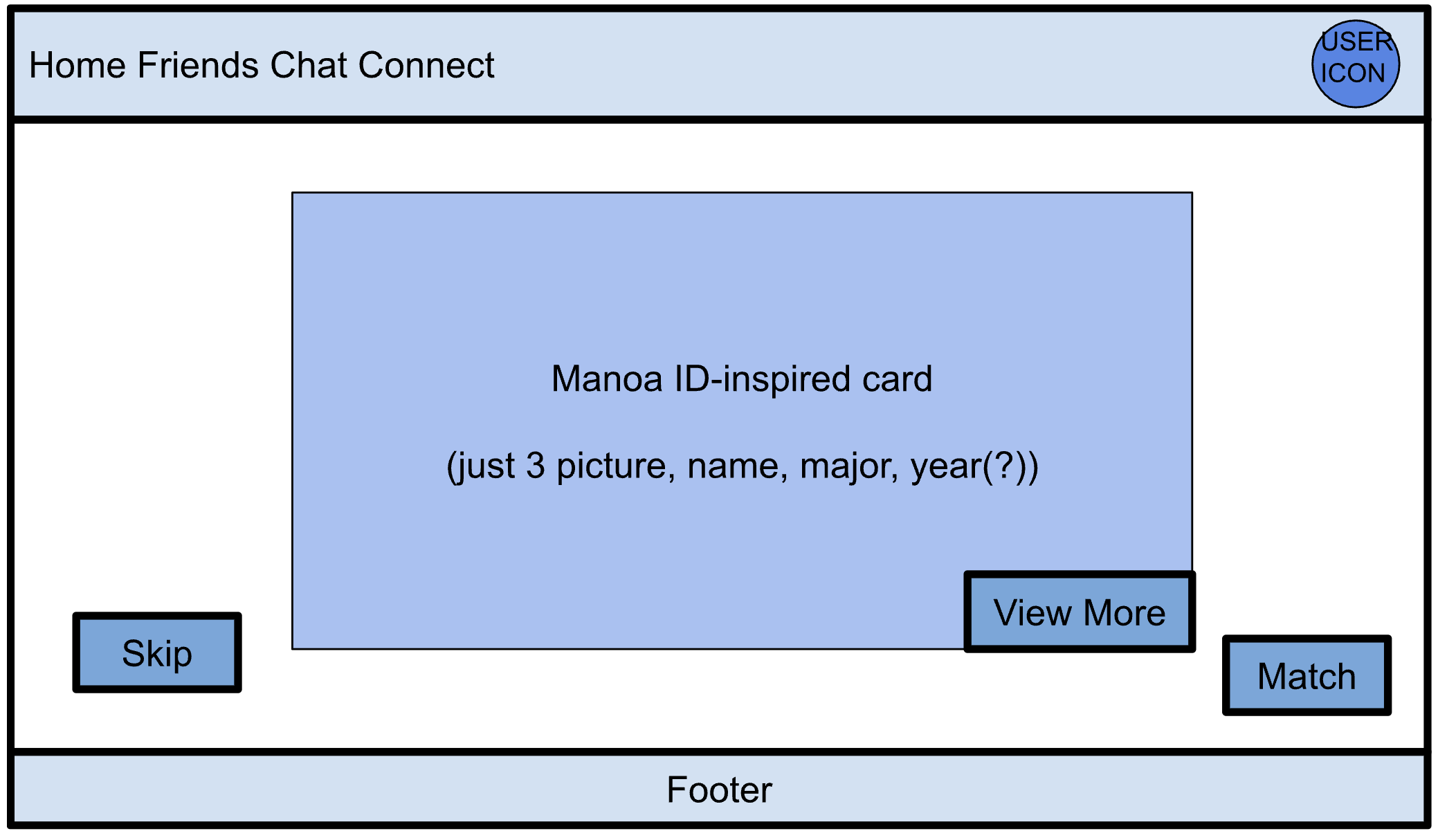
“Matching/Connect” Page
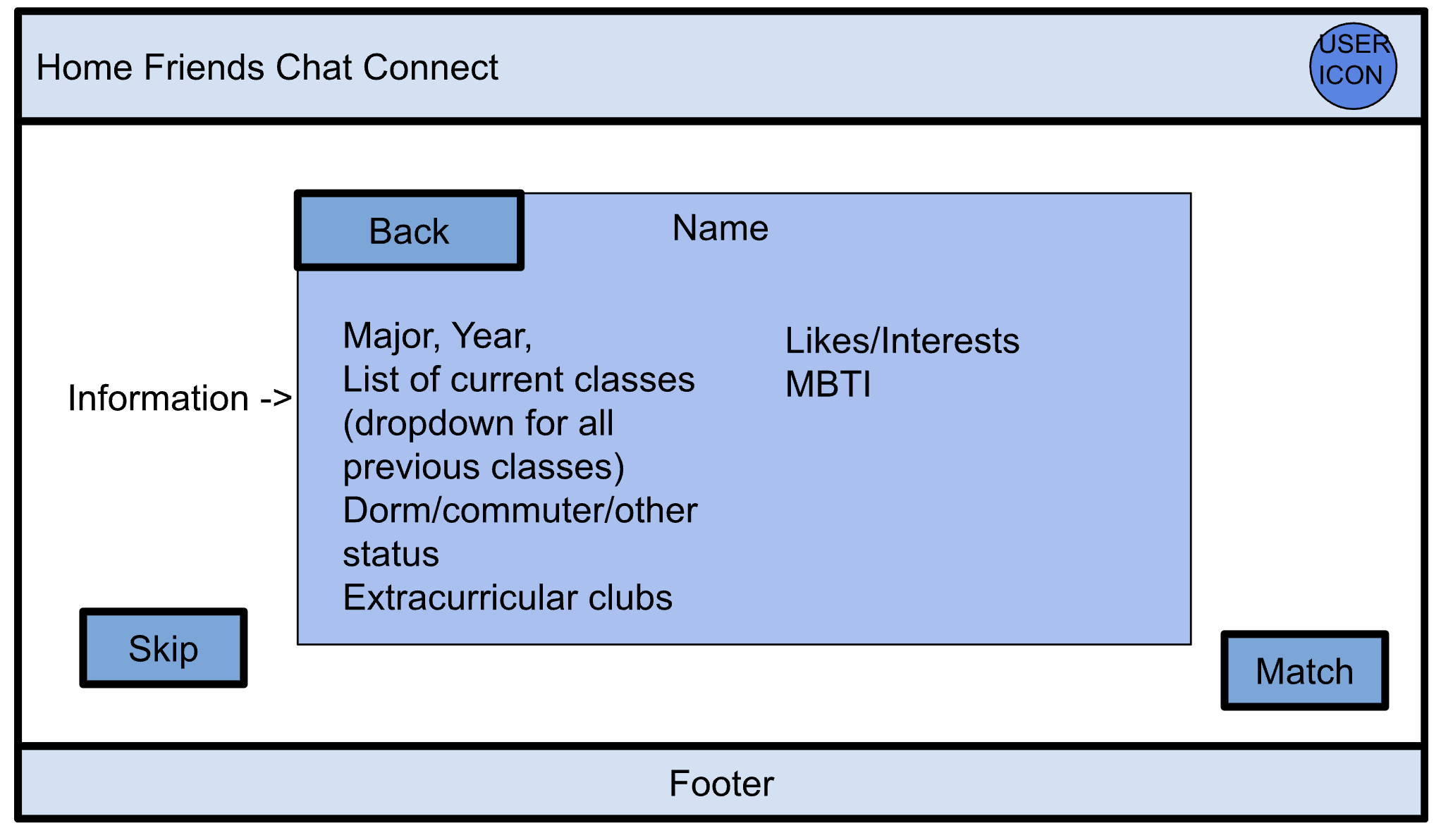
- Manoa ID-inspired layout (flips from front to back on button press)
- Contact object
- Name
- Photo(s) - limit to 3
- Major
- Likes/interests
- List of (previous/current) classes
- Dorm/commuter/other status
- Extracurricular clubs
- MBTI
Settings Page
- Access from profile page/dropdown from top right corner
- Scrollable
- Test
- Mostly dropdowns
- Some text boxes
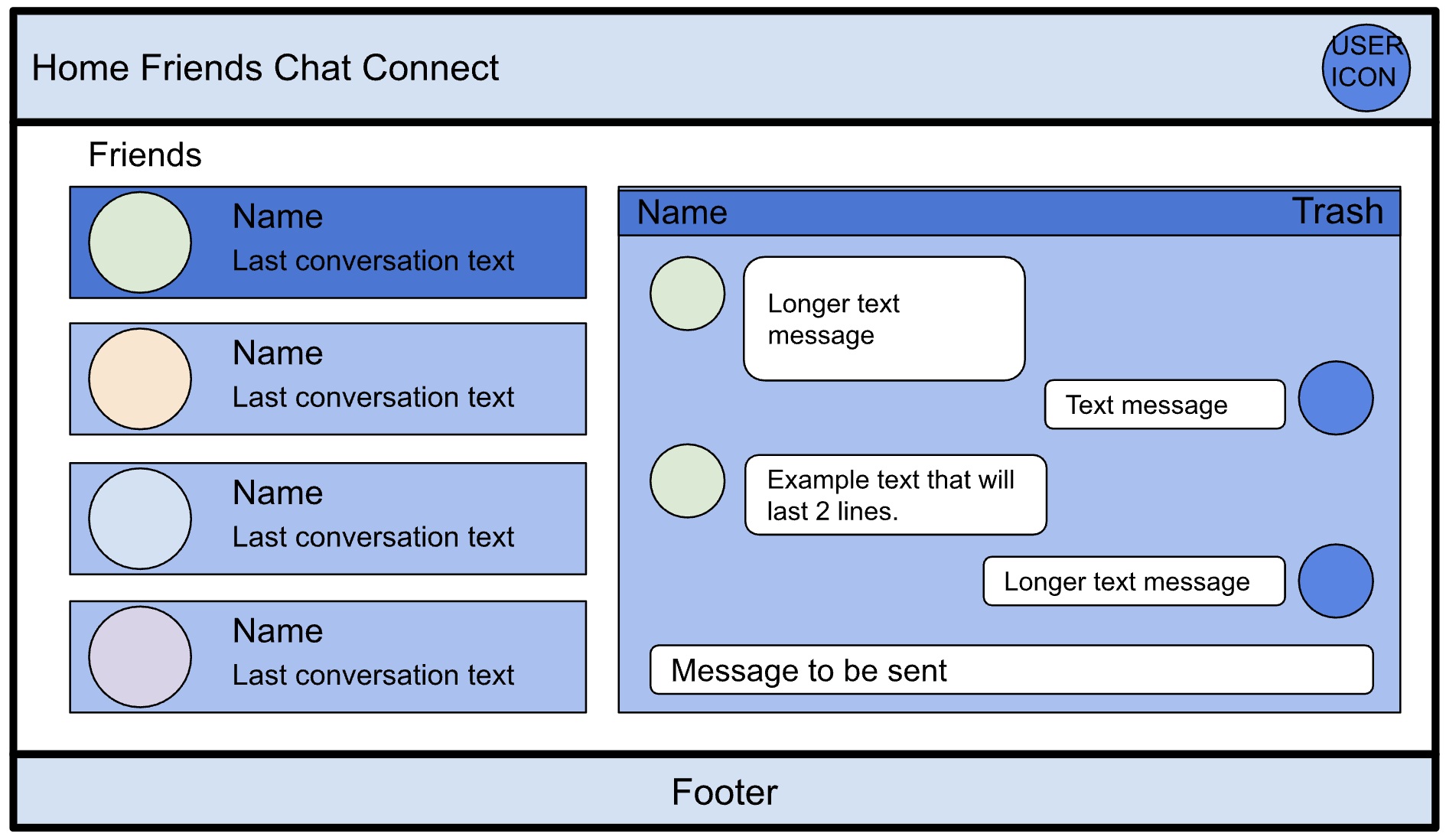
Friends List and Chat Page
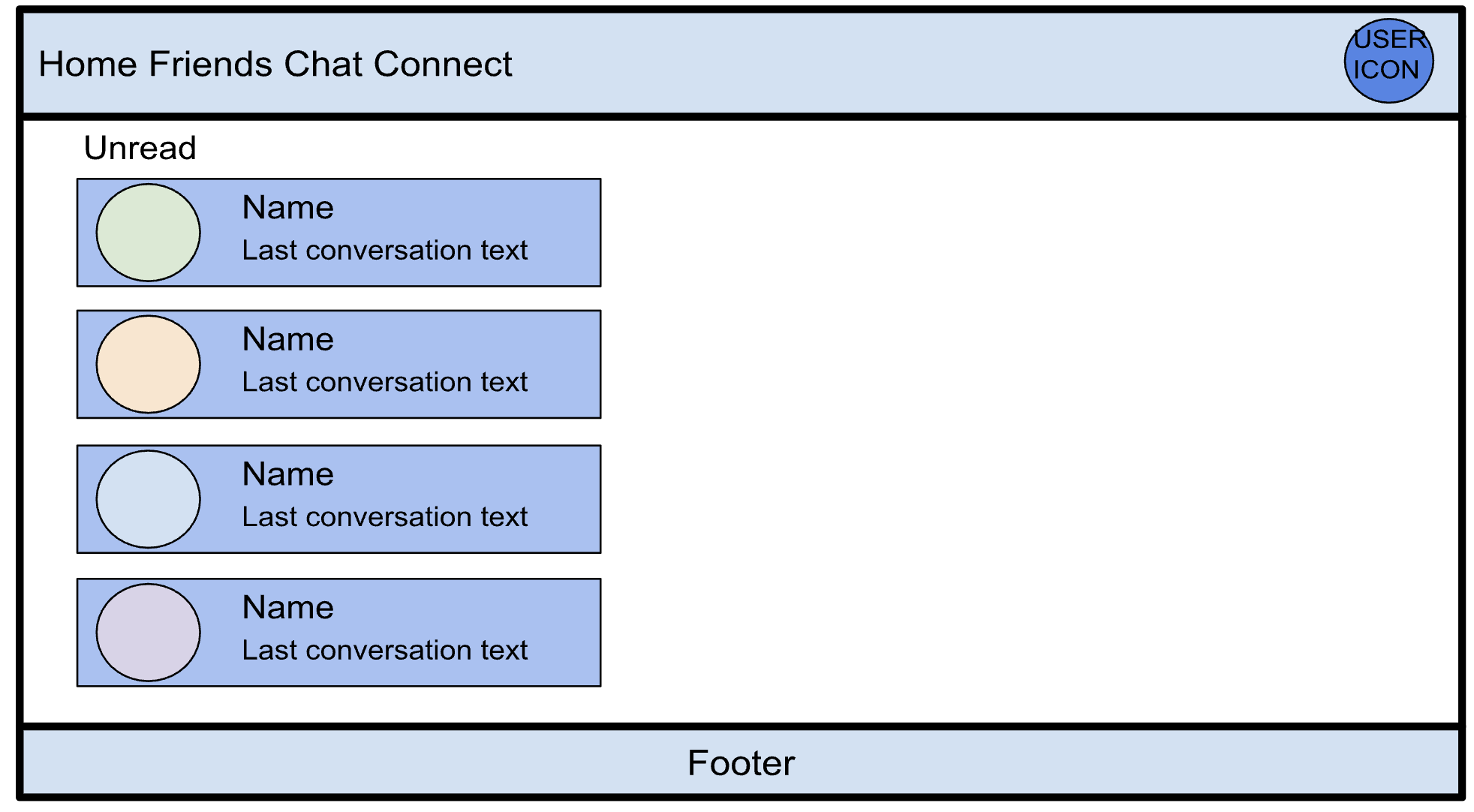
- Chat implemented using note and timestamp function
- Last conversation is the order of list
- Sort the chat box by the most recent conversation
- Default page is blank, just contacts
- Clicking on the icon box will open the chat box
- Deleting is like blocking because we will not reconnect the same people again
- It shows caution window to delete someone
Schedule Form
- Schedule object that holds an array of Classes objects
- Classes have the following:
- Time (00:00 - 00:00)
- Place
- Name
- Will be linked to Profile
- Used to populate Map page
Map Page
- Based on schedule of student
- Highlights the buildings they frequent
Development Timeline
Milestone 1 (M1)
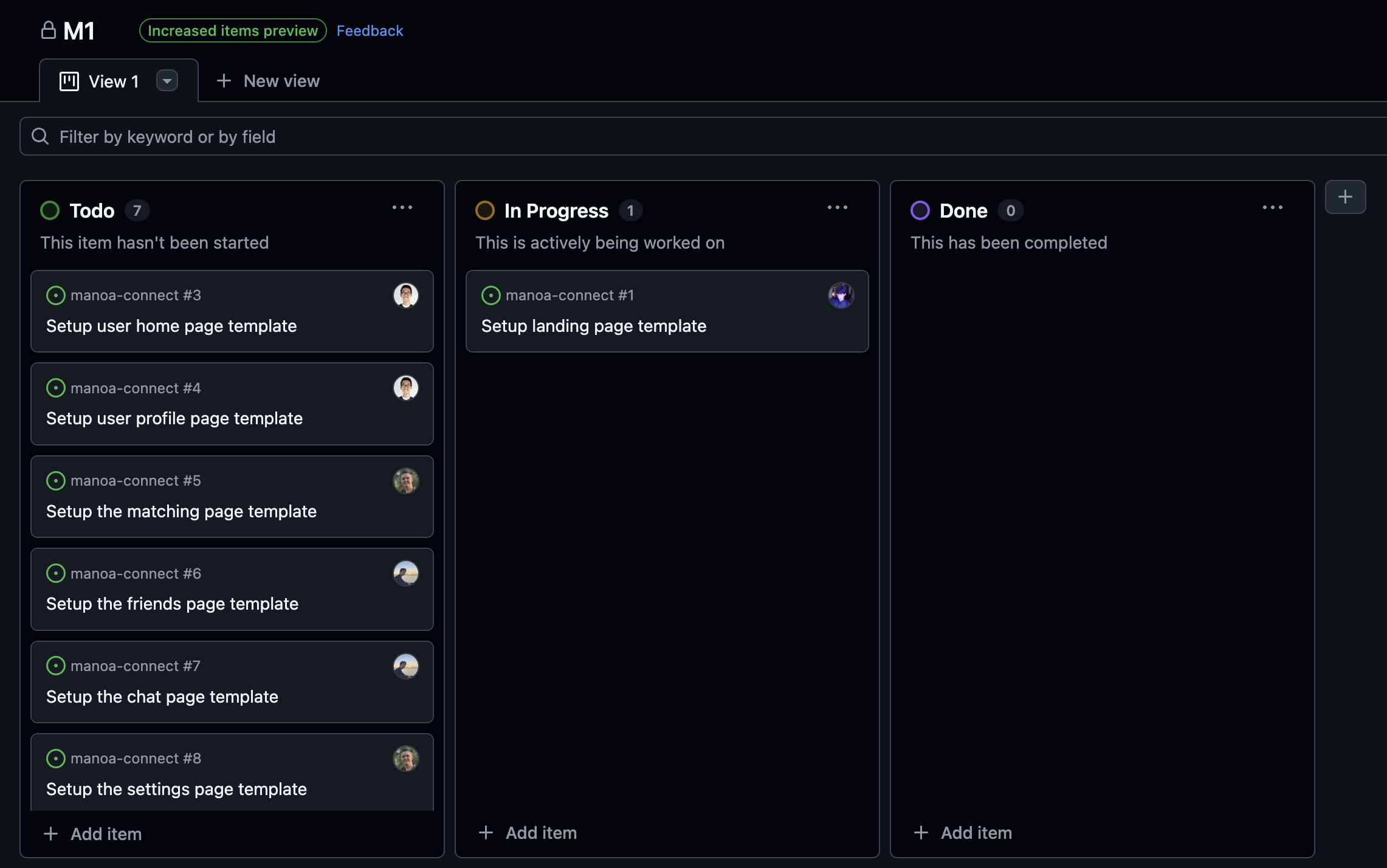
Link to the GitHub project view for Milestone 1.
- Completed landing Page
- Templates mockups of other pages in NextJS
- Setup GitHub issues and GitHub project
- Project home page
Milestone 2 (M2)
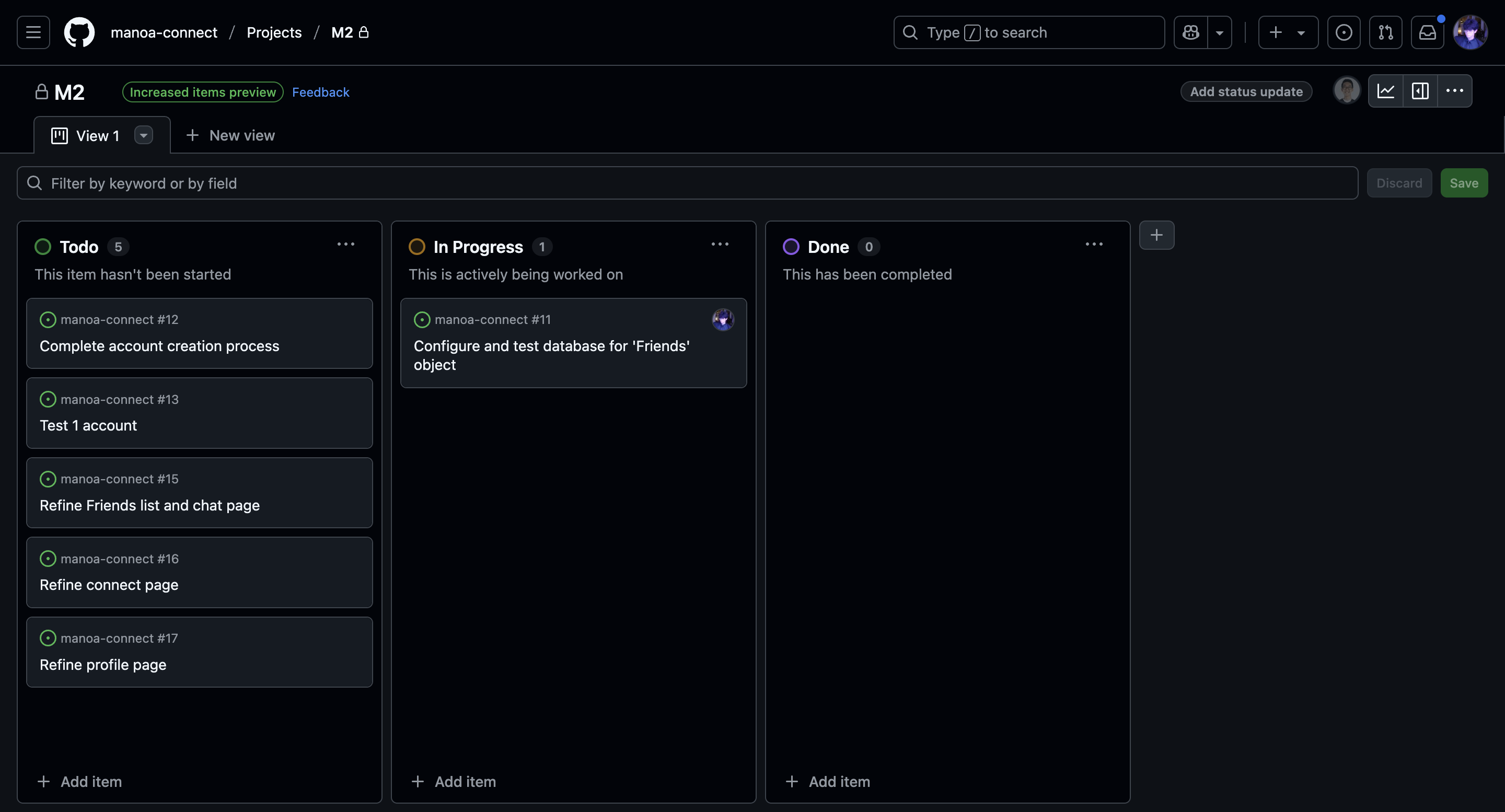
Link to the GitHub project view for Milestone 2.
- Configure and test database for ‘Friends’ object
- Complete account creation process
- Test 1 account
- Continue refining incomplete pages
Milestone 3 (M3)

Link to the GitHub project view for Milestone 3.
- Create schedule form
- Add map page based on schedule
- Clean up user profile page
- Clean up chat page
- Populate card with other user data
- Implement match and skip buttons